
 Harriet Wetton
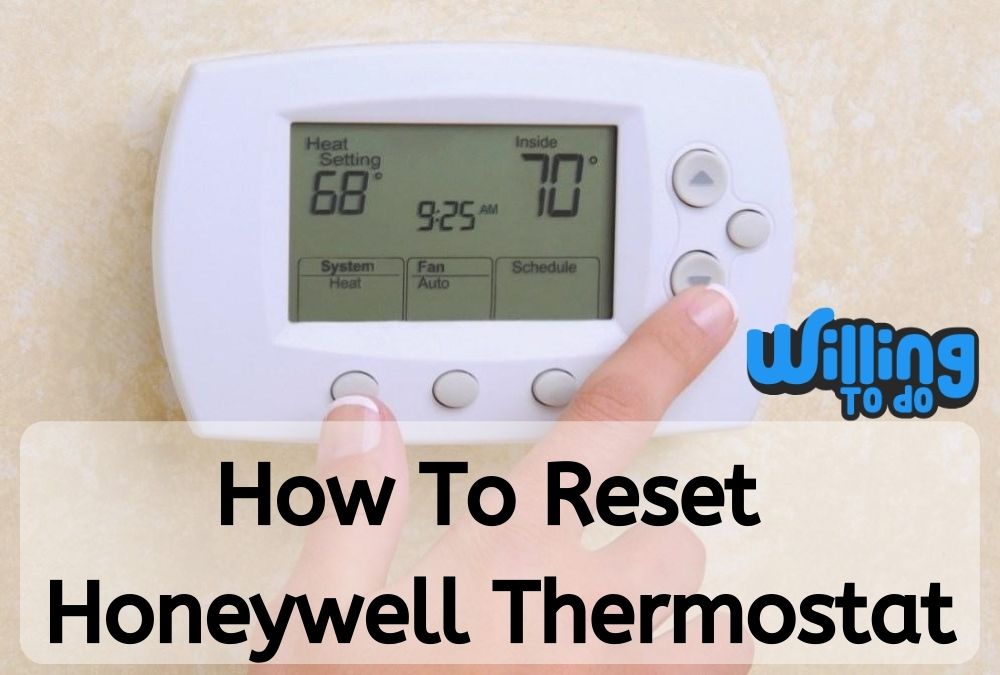
If you rely on a thermostat to keep your home or office comfortable, you have likely encountered a few frustrating moments. Maybe the screen went completely blank, the programmed schedule stopped working properly, or the device lost its Wi-Fi connection and refused to reconnect.
When heating and cooling systems act up, living spaces quickly become uncomfortable, and energy bills can begin to rise without warning.
In this comprehensive guide, we will walk you through the exact process of how to reset Honeywell thermostat models back to their factory default settings.
Whether you own an older manual system, a basic programmable unit, or a modern smart device, performing a reset is usually the fastest and most reliable way to clear software bugs, fix system freezes, and regain control over your indoor climate.
At home, thermostats are subjected to constant daily use. Family members frequently adjust temperatures, and children might accidentally alter settings after coming home from school. Unintentional adjustments can cause your heating or cooling system to run longer than necessary, leading to unexpected utility costs at the end of the month.
In an office environment, temperature settings are tweaked even more often as different employees try to adjust the space to their personal preferences. Over time, frequent adjustments can cause system glitches. Learning how to perform a quick system reset can save you from calling an expensive HVAC technician for a problem you can easily solve yourself.
Before jumping into the step-by-step methods for specific thermostat lines, it is helpful to look at why these devices glitch in the first place and how a simple reset brings them back to life.
Why You Might Need to Reset Your Honeywell Thermostat
Much like a computer, tablet, or smartphone, a modern thermostat relies on an internal processor and digital memory to store settings and execute schedules.
Every so often, this internal software can freeze, experience a temporary glitch, or encounter a bug after a sudden power outage or voltage spike. A factory reset clears out stored memory errors, restores default settings, and returns the device to its original out-of-box state.
A reset is also essential if you have recently moved into a new house or apartment. Performing a full wipe removes the previous owner’s custom heating schedules, temperature holds, and Wi-Fi network configurations, giving you a completely fresh start.
If you want to build a comfortable living environment, establishing a predictable temperature schedule is as important as maintaining a healthy daily routine for your household.
A standard reset can solve several common issues, including:
- The unit refusing to follow programmed heating or cooling schedules
- Frequent connection drops from your home Wi-Fi network
- Inaccurate ambient room temperature readings on the display
- Unresponsive touchscreens, frozen menus, or stuck buttons
- Failure to signal the heat pump, furnace, or air conditioner to turn on
- Displaying error codes after replacing batteries or recovering from a power outage
If your device is experiencing any of these issues, following the correct step-by-step procedure for your model series will usually resolve the problem in less than five minutes.
Related Products on Amazon
How to Reset Honeywell Thermostat 1000 Series
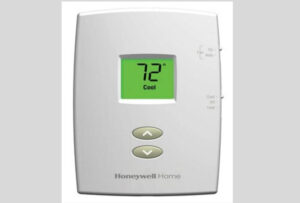
The Honeywell 1000 series includes non-programmable digital models valued for their straightforward operation and long-term reliability. These units are commonly found in apartments, rental properties, and budget-conscious homes.
If you no longer have the physical owner’s manual, the documentation is still available for download on the official Honeywell website for quick reference.
If you need to know how to reset Honeywell thermostat 1000 series models, keep in mind that these units use standard batteries to maintain onboard memory.
Because they do not feature a dedicated reset button, clearing the memory requires a simple physical battery reversal method that safely drains leftover power from the internal capacitor.
Step-by-Step Battery Reversal Method for the 1000 Series
Follow these precise steps to clear the memory and reset the 1000 series back to default factory settings:
- Slide the main power switch on the face of the unit to the OFF position.
- Go to your home breaker panel and switch off the circuit breaker that powers your HVAC system. This protects the electrical components while you handle the unit.
- Gently grasp the outer body of the thermostat and pull it straight off the wall plate. Most 1000 series units snap free with steady, firm pressure.
- Turn the unit over to view the rear battery compartment, where you will find two AAA alkaline batteries.
- Remove both AAA batteries from the compartment.
- Insert the batteries back into the compartment in reverse position. Place the negative pole of each battery against the positive terminal marking in the slot.
- Keep the batteries placed in reverse for 5 to 10 seconds. This safely drains leftover electrical charge from the internal circuit board, wiping stored data.
- Remove the batteries once more.
- Reinsert the batteries correctly, ensuring the positive and negative ends match the diagram inside the compartment.
- Watch the display screen. It should turn on and show the factory default setup menu.
- Align the thermostat body with the wall plate, snap it firmly back into position, and switch the HVAC breaker back to ON.
Once power is restored, your unit will be reset to factory defaults. Taking simple proactive steps to fix household issues like this is a great habit, much like knowing how to be the best employee in a professional setting by taking initiative before small issues become big problems.
How to Reset Honeywell Thermostat 2000 Series
The Honeywell 2000 series is an affordable line of basic programmable thermostats designed to help homeowners lower energy costs by scheduling heating and cooling cycles around daily routines.
These units are built to be durable and long-lasting, providing dependable service for years when properly maintained.
If you are searching for how to reset Honeywell thermostat with no reset button, the 2000 series is a classic example. Like the 1000 series, it lacks a dedicated physical reset key on the front panel.
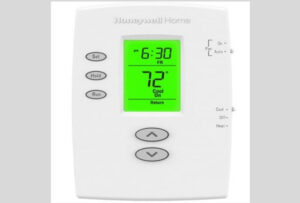
Honeywell 2000 series devices are versatile and compatible with gas, oil, or electric furnaces. They also work with central air conditioners, hot water heating systems (with or without circulation pumps), millivolt heating circuits, and standard single-stage heating and cooling setups.
Reset Process for the 2000 Series
Because the 2000 series relies on AAA alkaline batteries to store custom programming, resetting it requires the same reverse battery trick described above. Here is a quick summary of the process:
- Turn the thermostat switch to OFF and turn off the main HVAC circuit breaker.
- Remove the faceplate from the wall bracket.
- Remove both AAA batteries from the back of the unit.
- Reinsert both batteries backwards (matching positive ends to negative contacts) for 10 seconds.
- Remove the batteries and reinstall them in the correct orientation.
- Attach the faceplate back to the wall bracket and turn the circuit breaker on.
Working around the house when your HVAC system is turned off can get warm quickly. Remember to stay hydrated while completing DIY maintenance tasks, especially during warm weather when the air conditioner is offline.
How to Reset Honeywell Thermostat 4000 Series
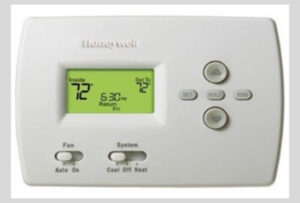
The 4000 series represents a robust category of programmable line-voltage thermostats designed for electric heating systems. Because these devices handle high-voltage line connections directly, understanding their electrical properties is important before performing maintenance.
The Honeywell 4000 series is designed to control line-voltage electric heating applications such as:
- Electric baseboard heaters
- Radiant ceiling heating systems
- Convector heaters
- Fan-forced electric wall heaters
However, it is important to note that the 4000 series is not compatible with low-voltage systems (24V), resistive loads under 1.25 Amps or over 12.5 Amps, or heating systems driven by central relays and contactors.
Safety Warning: Thermostats in the 4000 series operate on line voltage (120 to 240 Volts). Always exercise caution when handling these units.
If you are ever unsure about working around high-voltage electrical boxes, consult a qualified electrician or HVAC specialist who knows how to become a businessman in the trades industry.
Step-by-Step Reset Procedure for 4000 Series Models
If your high-voltage system needs a reset and the wiring is secure, learning how to reset Honeywell thermostat 4000 series units is quick and simple. Unlike the battery-draining method used on lower series, these models feature an onboard reset port.
- Ensure the thermostat is powered on and displaying information on the screen.
- Press and hold the button labeled PROGRAM on the keypad.
- While continuing to hold the PROGRAM button, take a small pointed object like a straightened paperclip or pin and insert it into the small RESET hole located on the housing.
- Press down gently inside the hole for one second until the display blinks or turns off briefly.
- Release the paperclip, then release the PROGRAM button.
Once the cycle finishes, the screen will reboot with default factory values. You will need to reset the clock, set the day of the week, and enter your weekly heating schedules again.
Setting up your routine after a system refresh is a good opportunity to evaluate your habits, including how to stay hydrated throughout the day while organizing your daily household tasks.
How to Reset Wi-Fi on Honeywell Thermostat (6000 Series)
The Honeywell 6000 series is one of the most widely installed Wi-Fi programmable thermostats. It allows homeowners to adjust temperatures remotely from a smartphone app or web browser by connecting to the official Honeywell home access portal.
When network settings change, or if the unit stops communicating with your local router, learning how to reset wifi on Honeywell thermostat models is necessary to restore internet connectivity.
The Honeywell 6000 series is compatible with standard heating and cooling setups, including:
- Standard forced-air systems (gas, oil, or electric with central A/C)
- Multistage heating and cooling equipment
- Hydronic hot water baseboard systems
- Air-source and geothermal heat pump systems
Important System Protection Note: To prevent compressor damage, avoid testing or running your air conditioner when outdoor temperatures drop below 10°C (50°F). Running the cooling system in cold weather can cause lubricant fluids to thicken, potentially damaging the compressor mechanism.
If troubleshooting home systems leaves you overwhelmed, take a moment to read about how to manage stress in daily life to keep household maintenance manageable.
Resetting Wi-Fi Settings on the 6000 Series
If your 6000 series display shows an offline error, follow these exact button combinations to clear old network credentials and restart the Wi-Fi setup process:
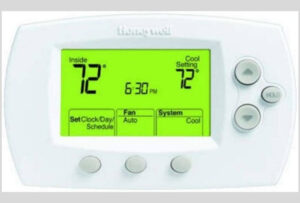
- Verify that the thermostat faceplate is powered on.
- Press and hold the FAN button on the keypad. Do not let go.
- While holding FAN, press and hold the UP Arrow button at the same time.
- Hold both buttons down together for approximately 5 seconds until the screen changes to show advanced configuration numbers.
- Press the fourth button from the left repeatedly until the parameter number on the left side of the display changes to 39.
- Use the DOWN Arrow button to change the setting number on the right side of the screen from 1 to 0.
- Press the DONE button in the corner of the display to save your changes.
The screen will display a flashing Wi-Fi Setup message. This indicates that the previous network information has been wiped and the device is ready to connect to a new wireless network.
Connecting smart home devices to local Wi-Fi networks is straightforward once you know where to look, much like finding reliable access when looking for free Wi-Fi near me while traveling.
How to Reset Old Honeywell Thermostat Models (7000 Series)
The Honeywell 7000 series is a flexible programmable line used in many residential homes. These units feature larger displays and expanded programming options designed to work with multi-stage heating systems and heat pumps with auxiliary backup heat.
If you need to know how to reset old Honeywell thermostat models in the 7000 product line, you will find that the procedure relies on the physical power interruption method rather than digital menus.
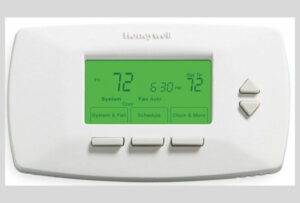
Step-by-Step Reset for 7000 Series Devices
- Switch the system mode control on the thermostat screen to OFF.
- Turn off power to the HVAC equipment at the main circuit breaker panel.
- Grasp the sides of the thermostat housing and pull it firmly away from the wall mounting plate.
- Locate the two AAA alkaline batteries in the rear compartment.
- Take both batteries out of their slots.
- Reinsert the batteries backwards (positive terminals placed against negative contacts) and leave them in place for 5 to 10 seconds to drain remaining power.
- Remove the batteries, then reinstall them in the correct direction as indicated by the markings.
- Snap the unit back onto the wall plate and turn the circuit breaker back on.
Your 7000 series display will turn on with default factory settings, allowing you to re-program your weekly temperature schedules from scratch.
Resetting the Honeywell Lyric T Family (T5, T6, and T10 Smart Models)
The Honeywell Lyric T Series (including the popular T5, T6, and T10 models) represents Honeywell’s modern generation of touchscreen smart thermostats. Designed to compete directly with platforms like Nest and Ecobee, these smart devices support geofencing, custom app scheduling, and home automation integrations.
Because Lyric T series units use full-color touchscreens, performing a reset is done using the digital menu interface on the screen rather than pulling batteries or pressing physical buttons.
How to Reset Schedules Only on Lyric Thermostats
If your heating schedules are conflicting but you want to keep your Wi-Fi connection intact, you can clear schedule settings without performing a full reset:
- Tap MENU on the thermostat home screen.
- Touch the arrow keys until you see the RESET option on the display.
- Select RESET, then choose SCHEDULE from the sub-menu.
- Confirm your selection by tapping YES. The thermostat will clear custom time blocks while keeping network configurations saved.
How to Perform a Full Factory Reset on Lyric T Series
If you are giving the thermostat to someone else, changing your router, or troubleshooting severe software freezes, performing a full factory reset is the best choice:
- Touch the MENU icon on the primary display screen.
- Navigate through the options using the arrow buttons until you highlight RESET.
- Touch SELECT, then scroll to FACTORY.
- Touch SELECT, and confirm your choice by pressing YES when prompted.
The system will reboot, erase all saved data (including Wi-Fi settings, installer configurations, and schedule routines), and start up showing the initial setup screen.
How to Reset Honeywell Thermostat 8000 Series (VisionPro)
The Honeywell 8000 series VisionPro line features large 10-inch touchscreen displays designed for easy reading and simple touch navigation. Known for their durability, VisionPro models are widely used in both residential homes and commercial office spaces.
VisionPro units can run on internal AA batteries or receive 24V common wire power directly from the HVAC system. They support almost all heating and cooling configurations, including complex hydronic systems and multi-stage heat pumps.
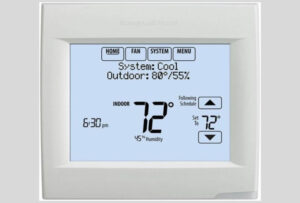
Reset Procedure for the 8000 Series VisionPro
Because the 8000 series is designed for commercial and advanced residential use, access to the master reset function is located within an advanced installer menu on the screen:
- Ensure the thermostat display screen is active and powered on.
- Press the SYSTEM button option on the touchscreen interface.
- Look at the row of blank touch pads along the bottom center of the screen. Press and hold the middle blank button for 5 seconds.
- A hidden installer configuration menu will appear showing two sets of numbers.
- Use the arrow keys to adjust the left parameter number to 0670.
- Use the arrow keys to change the right parameter number to 1.
- Tap DONE in the corner of the screen to save the settings and complete the factory reset.
After saving, the system will restart with factory defaults restored. If you like keeping home systems updated, you may also find value in exploring how to build a daily self-care routine that works to maintain balance in your home life.
How to Reset Honeywell Thermostat 9000 Series and VisionPro Smart
The Honeywell 9000 series and VisionPro Smart models represent Honeywell’s premium climate control platforms. Featuring full-color customizable touchscreens, voice control capabilities, and adaptive learning algorithms, these units monitor indoor humidity, outdoor weather conditions, and home usage patterns to optimize HVAC efficiency.
Understanding how to reset Honeywell thermostat 9000 series units is essential if you need to update home network parameters, transfer device ownership, or resolve software conflicts.
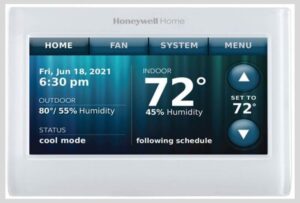
The 9000 series integrates smoothly with leading smart home platforms, including:
- Amazon Alexa and Google Assistant
- Samsung SmartThings ecosystem
- Apple HomeKit (on supported models)
- IFTTT automated applets
Factory Resetting the 9000 Series On-Screen Menu
To reset this high-tech unit, follow these steps using the color touchscreen display:
- Press the MENU button on the main screen.
- Scroll down through the options list and select PREFERENCES.
- Scroll down within the preferences sub-menu until you find RESTORE FACTORY DEFAULTS.
- Tap RESTORE FACTORY DEFAULTS and press YES when asked to confirm your choice.
The screen will turn off briefly, initiate a reboot cycle, and present the initial setup wizard once fully restarted.
Thermostat Troubleshooting Matrix
If you are unsure which reset method to use for your device, refer to this quick reference table comparing popular Honeywell thermostat series, their reset methods, and key features:
| Thermostat Series | Primary Reset Method | Wi-Fi Support | Best Suited System Type |
|---|---|---|---|
| 1000 Series | Reverse Battery Method | No | Standard Single-Stage Heating/Cooling |
| 2000 Series | Reverse Battery Method | No | Basic Programmable Systems |
| 4000 Series | Program Button + Pin hole | No | High-Voltage Line Electric Baseboards |
| 6000 Series | Keypad Code Menu (Code 39) | Yes | Multi-Stage Forced Air & Heat Pumps |
| 7000 Series | Reverse Battery Method | No | Advanced Multi-Stage Residential Systems |
| Lyric T Series | On-Screen Reset Menu | Yes | Smart Home & Geofencing Systems |
| 8000 VisionPro | Installer Menu (Code 0670) | Optional | Commercial & Advanced Residential |
| 9000 Series | Preferences Menu Selection | Yes | Voice Control & Smart Home Hubs |
Troubleshooting Common Post-Reset Issues
Sometimes a reset solves the main issue, but secondary glitches show up during re-configuration. Here are quick solutions to common issues that can occur after performing a reset:
Thermostat Display Screen Remains Blank
If the screen stays dark after re-attaching the faceplate, check the following points:
- Verify that batteries are installed with correct polarity.
- Ensure fresh alkaline batteries are used (avoid rechargeable batteries, which produce slightly lower voltage).
- Check the furnace or air handler door panel. Most HVAC units have a safety switch that cuts 24V power if the access door is not completely closed.
- Check your home breaker box to make sure the HVAC switch was returned to the ON position.
System Blower Fan Runs Continuously
If the indoor fan runs non-stop after a reset, check the FAN setting on the primary display screen. If set to ON, the fan will circulate air continuously regardless of whether the heating or cooling equipment is actively running.
Switch the FAN setting back to AUTO so the fan only operates when heating or cooling cycles engage.
Heat Pump Blows Cool Air in Heat Mode
If you have a heat pump system and it blows cold air when set to heat mode after a reset, the reversing valve setting may need adjustment.
During setup, smart and programmable thermostats prompt you to configure the reversing valve (O/B terminal) to energize either in heating or cooling mode. Refer to your heat pump brand manual to select the correct setting for your system.
Maintaining home systems, staying organized, and establishing consistent habits can improve your daily living environment, much like setting up a morning routine for energy helps you stay productive throughout the day.
Frequently Asked Questions
Will resetting my thermostat delete my Wi-Fi settings?
Yes, performing a full factory reset will erase stored network credentials, including your Wi-Fi network name and password. You will need to select your local network name and enter your password again through the setup menu once the reset cycle completes.
How often should I reset my Honeywell thermostat?
You do not need to reset your thermostat on a regular schedule. You should only perform a reset if the system experiences a software freeze, stops following its schedule, fails to connect to Wi-Fi, or if you are moving into a new home and want to clear previous settings.
What if my Honeywell thermostat screen stays blank after a reset?
If the display screen stays blank after completing a reset, start by checking that the batteries are fresh and placed in the correct orientation. If the batteries are good, check your main electrical panel to verify that the HVAC circuit breaker is turned on and that the safety switch on the furnace door is closed.
Does a reset fix a thermostat that will not reach the target temperature?
A reset can resolve software errors that prevent the thermostat from signaling your heating or cooling system to turn on. However, it cannot repair mechanical HVAC problems, such as a failing air conditioner compressor, low refrigerant levels, dirty air filters, or a faulty furnace igniter.
If a reset does not fix the issue, contact a certified HVAC technician for diagnostic assistance.
Can I reset my Honeywell thermostat using the mobile app?
While you can update temperature settings, adjust holds, and edit schedules using the Honeywell Home or Resideo mobile app, performing a complete factory reset requires physical access to the device screen for security reasons.
What is the difference between a schedule reset and a factory reset?
A schedule reset only wipes your saved daily heating and cooling time blocks, restoring default energy-saving schedules while preserving your Wi-Fi settings, clock time, and system configuration. A factory reset wipes all user data, returning the device to its original out-of-box state.
Conclusion
Honeywell has remained a trusted leader in home heating and cooling control for decades. Whether you rely on a basic manual unit, a reliable programmable model, or a modern touchscreen smart system, learning how to reset Honeywell thermostat devices is a useful skill that helps keep your living space comfortable while keeping utility bills predictable.
By following the specific reset instructions for your model series, you can resolve most common display errors, schedule conflicts, and Wi-Fi connection issues in just a few minutes without having to schedule an expensive service call.
If you found this home maintenance guide helpful and enjoy learning actionable skills, check out our guide on how to earn with Google AdSense to learn how to monetize your technical knowledge online!